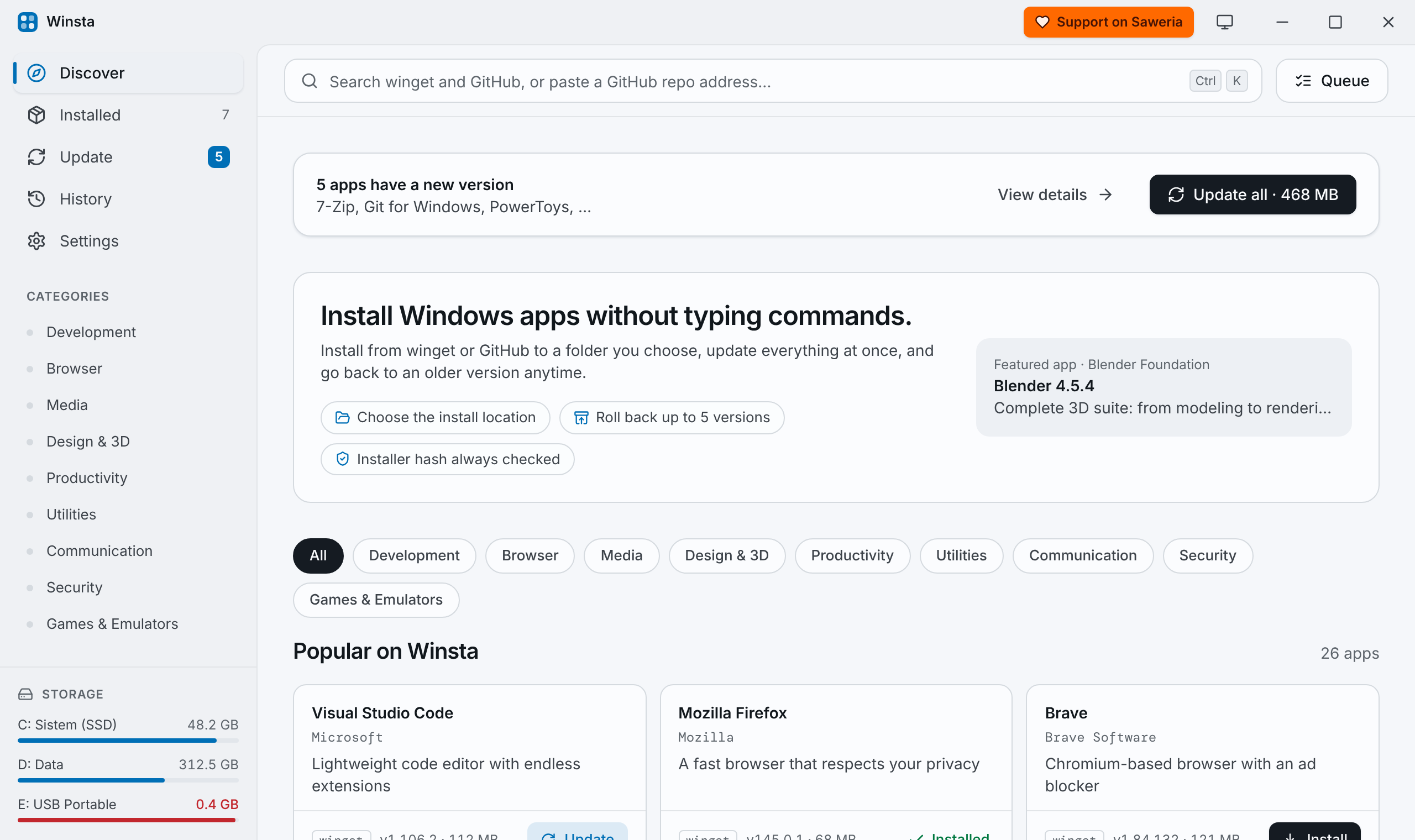
 Winsta
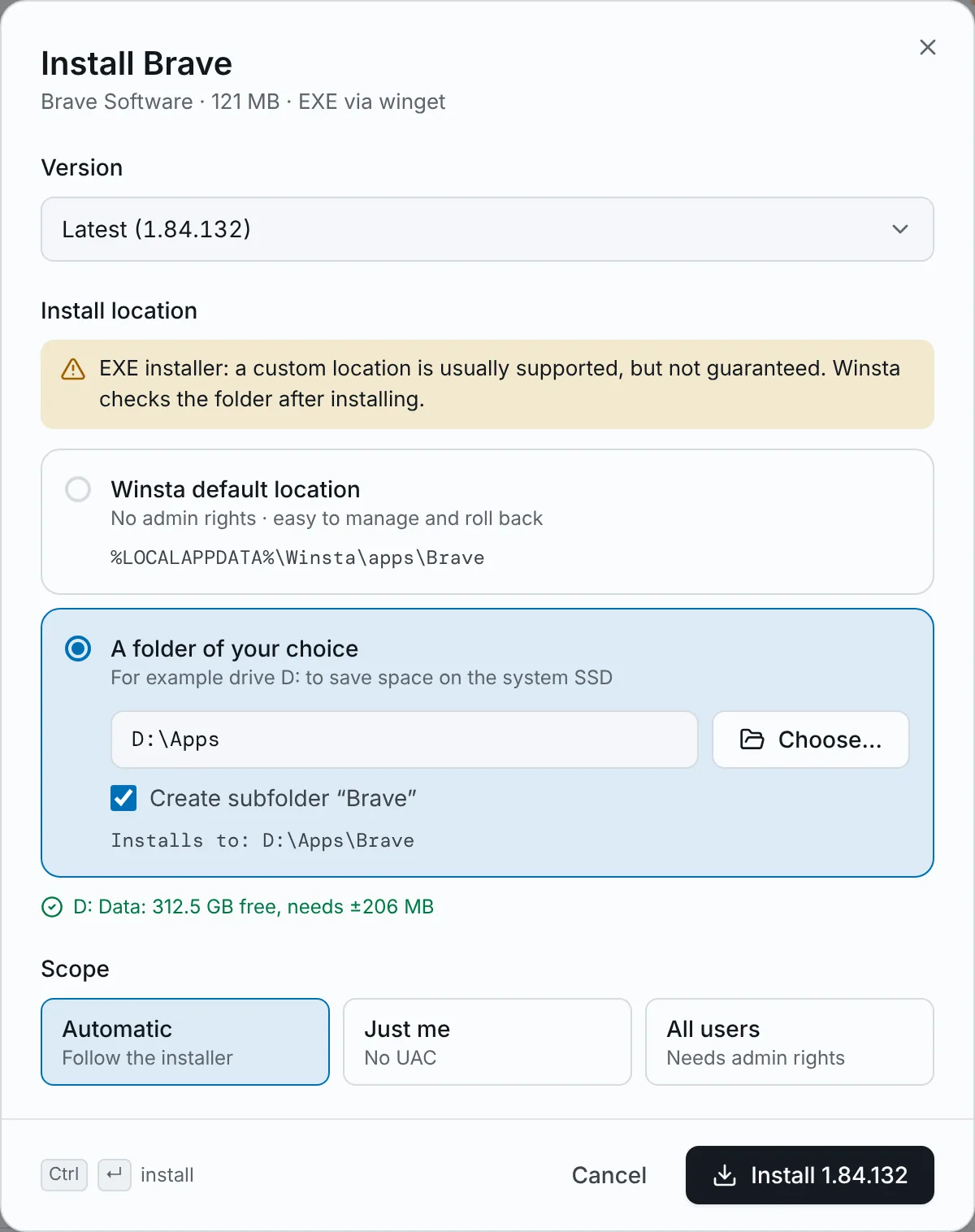
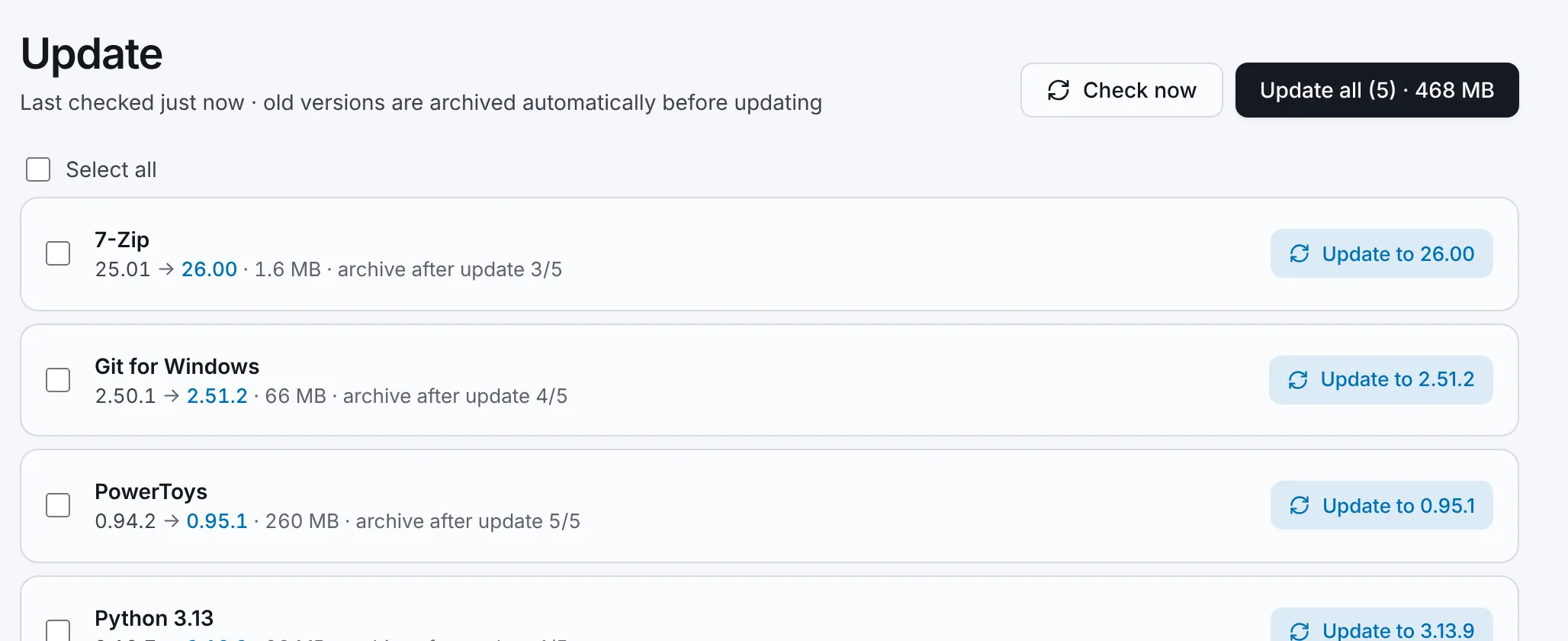
Choose the install location
Install to Winsta’s default folder or any folder you pick, like drive D: to save space on your system SSD. Winsta tells you whether each installer type supports a custom folder and checks free disk space first.
A free, open-source app manager built on winget.
Windows may show a SmartScreen warning the first time. Why it’s safe to run
Counted live from GitHub.
Winsta runs Microsoft’s winget for you and adds what it leaves out: install folders, version history and a clean uninstall.
Install to Winsta’s default folder or any folder you pick, like drive D: to save space on your system SSD. Winsta tells you whether each installer type supports a custom folder and checks free disk space first.
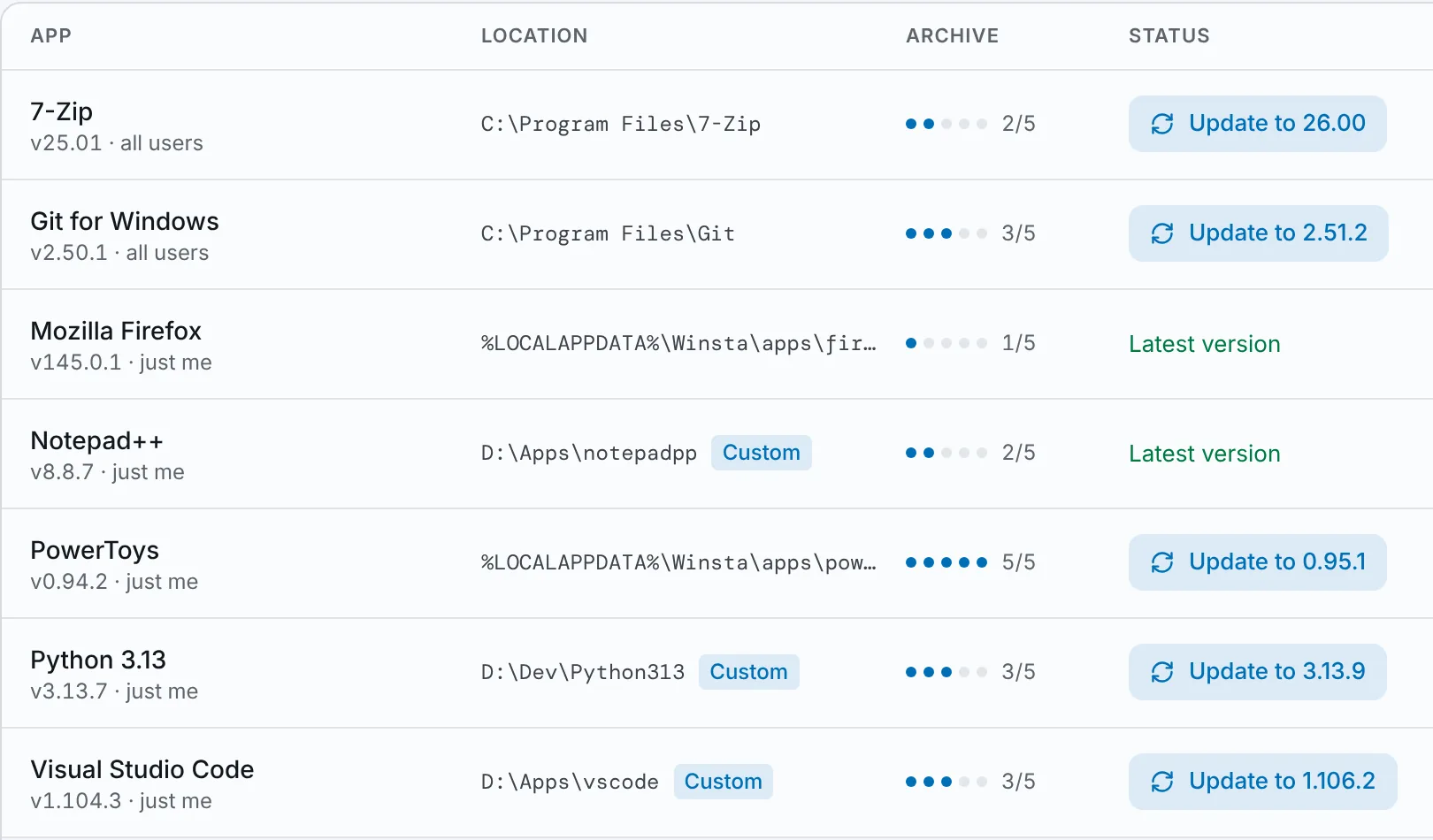
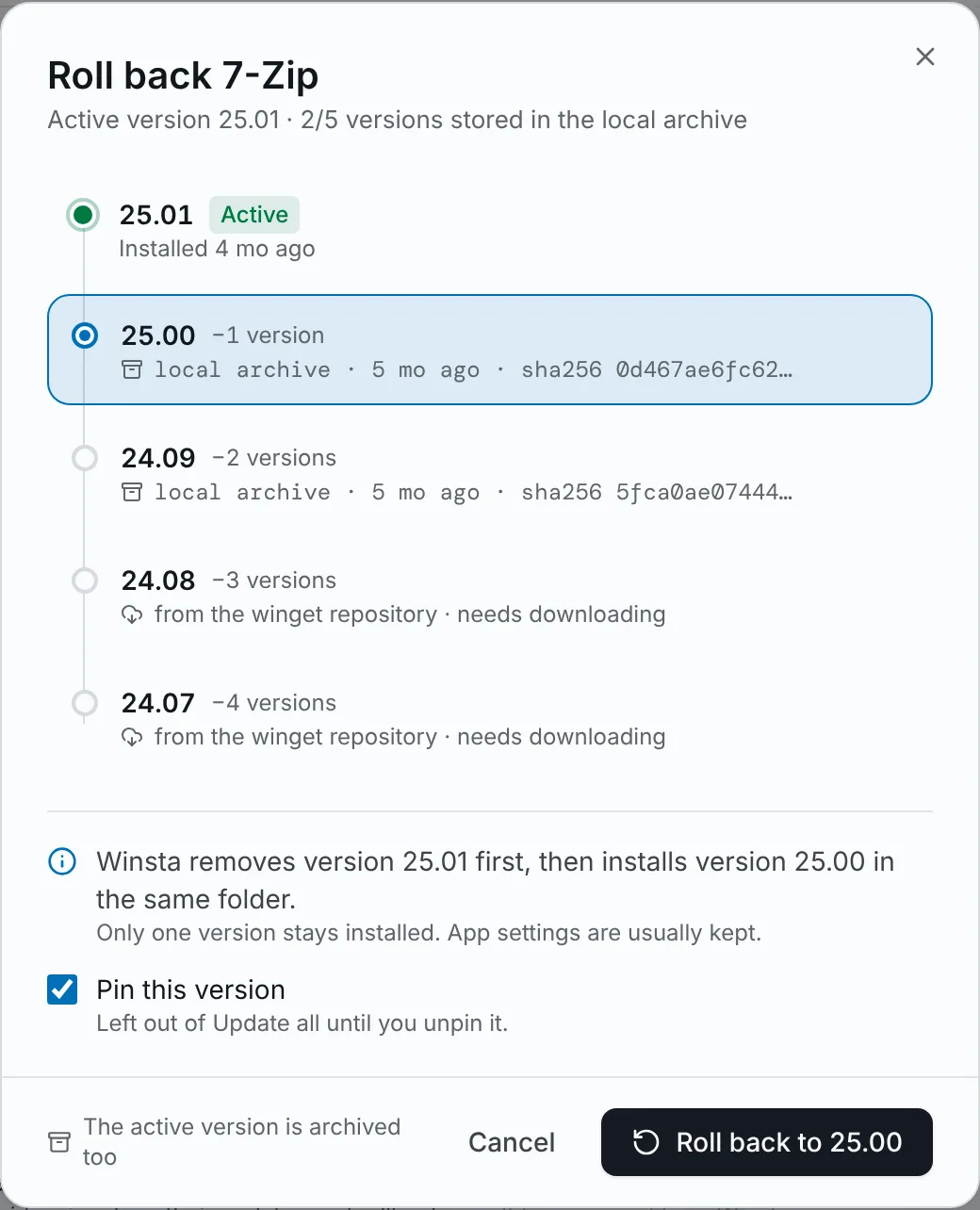
Go back to an earlier version and pin it, so Update all leaves it alone.
No background process or tray icon. New versions show as a number on the Update menu.
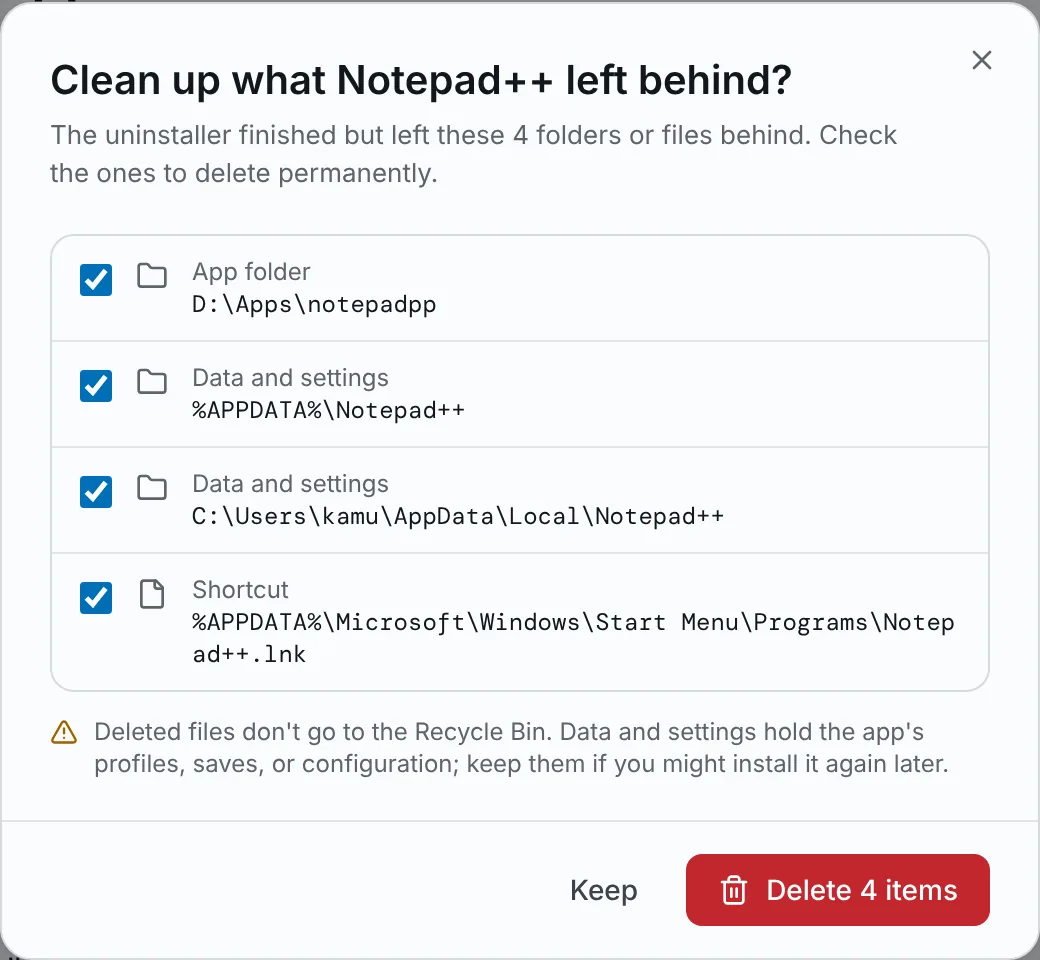
After the uninstaller runs, Winsta finds leftover folders, app data, and shortcuts, and deletes the ones you check.
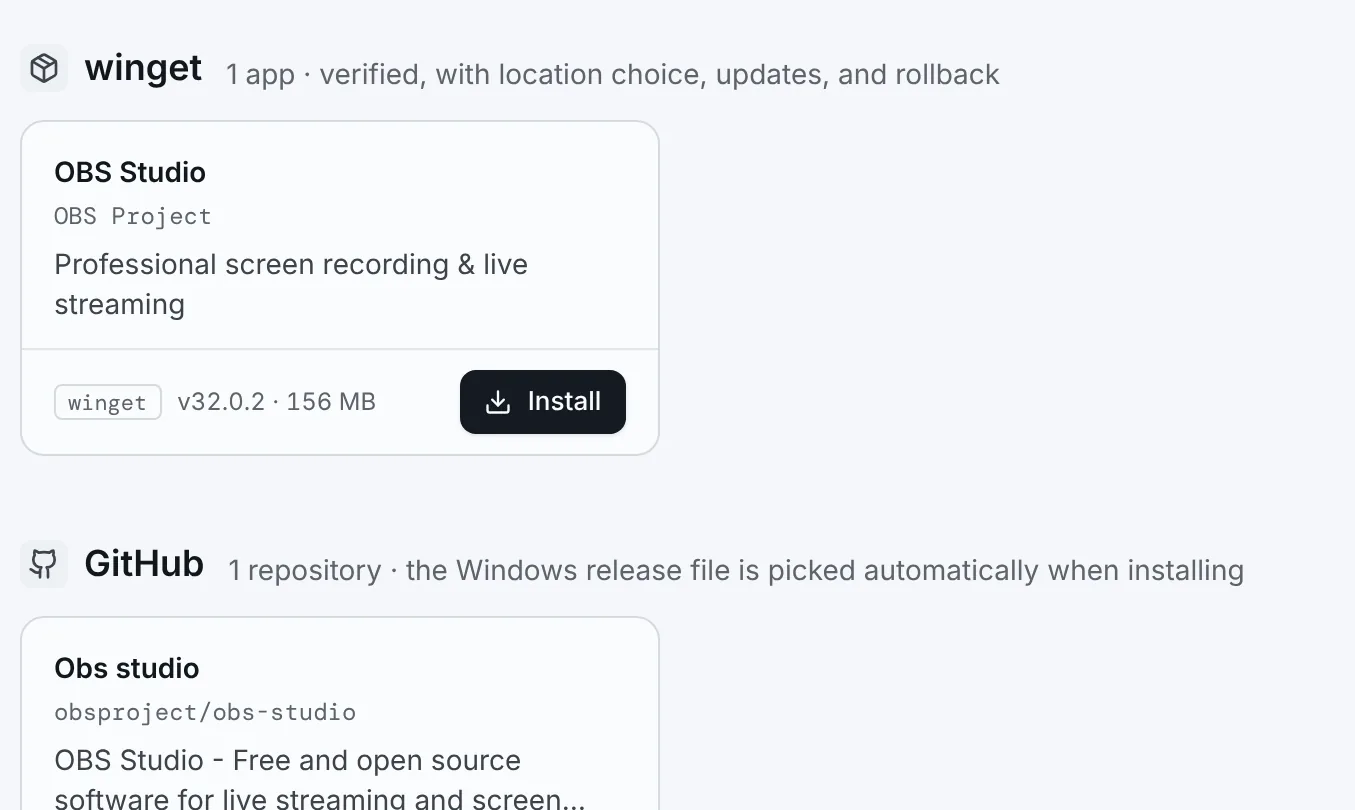
Search GitHub or paste a repo address. Winsta picks the right Windows file and checks its fingerprint (SHA-256), so you get the file the developer published.
Five short clips recorded on a real PC, without sound. Each one plays while it is on screen.
Type a name. Winsta searches the winget repository and GitHub at the same time.
Pick a version and a folder before installing, here an older Audacity on drive D:.
Choose the folder Winsta installs into by default, on any drive.
Go back to an earlier version. The newer one stays listed as an update.
After the uninstaller runs, delete the folders and data it left behind.
Requires Windows 10 (1809 or later) or Windows 11, 64-bit, with winget (App Installer). winget is built into Windows 11.
Get the .msi file from the latest release.
Run it. On the Destination Folder page, click Change… to install Winsta on any drive.
Start it from the Start menu. It scans the apps already on your PC and checks for updates.
Click More info, then Run anyway. The installer isn’t code-signed yet, so Windows doesn’t recognize it. It’s built in the open by GitHub Actions, and every release lists its fingerprint (SHA-256) so you can check the file.
Coming soon, once Winsta is accepted into Microsoft’s catalog: winget install Savoreux.Winsta
Before installing, winget checks that every file matches the one its publisher listed. No telemetry, no account, no ads.
Found a bug or missing something? Every report is read. You’ll need a free GitHub account to post.
Yes. Winsta is free and open source under the GPL-3.0 license. There are no ads, accounts, or paid tiers.
Winsta reads the list from winget. On the Installed page, click Install module to add Microsoft’s official Microsoft.WinGet.Client module, so names and IDs are read in full. Apps installed outside winget appear under “Other installed apps”.
Some installers don’t record their install folder in Windows. The app is still detected by its name and ID, and can still be updated or uninstalled.
It depends on the installer. MSI and portable apps respect the folder you pick; some .exe installers may ignore it, and MSIX packages are placed by Windows. Winsta shows this before you install and tells you afterwards if the installer used its own location.
No. Winsta has no telemetry or analytics. It only connects to winget sources and GitHub when you search, install, or update.
Open Windows Settings, then Apps, Installed apps, Winsta, Uninstall. Apps you installed with Winsta stay installed.
If it saves you time, you can support development on Saweria, or star the project on GitHub.